
Trusted by 10,000+ professionals
Professional screen capture, made simple.
Zero lag recording, instant capture, and a screenshot editor that is actually worth using.
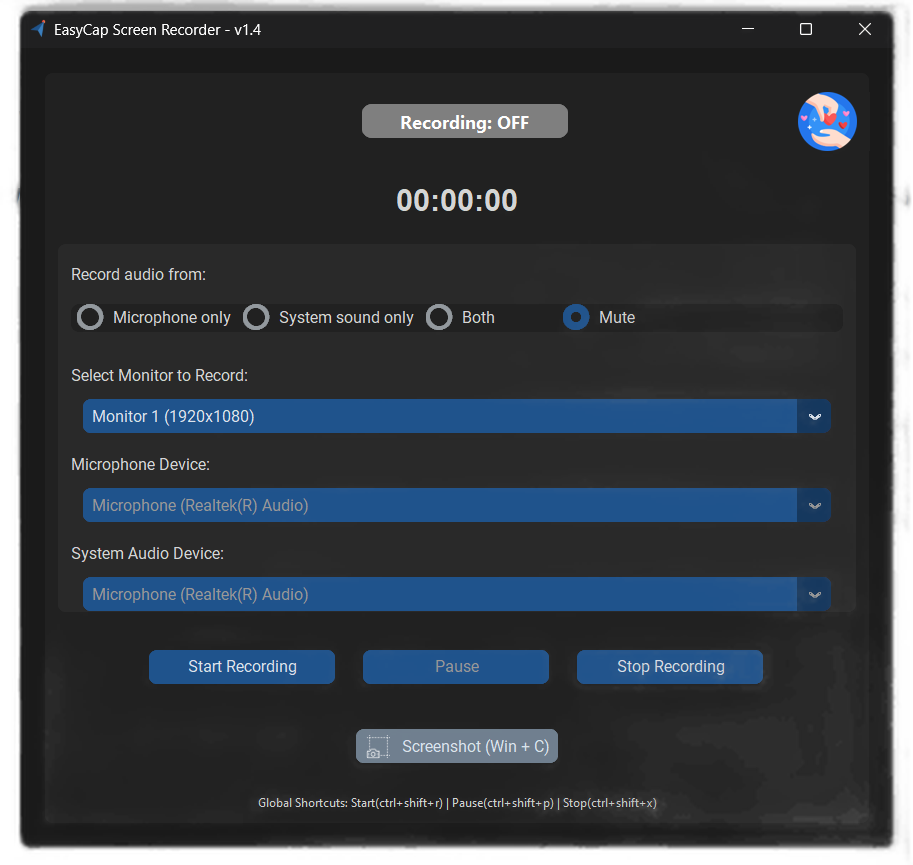
- Full-screen HD video capture
- Built-in screenshot editing suite
- Unlimited recording time, no watermarks
- Secure, lightweight, and completely free
Features
Everything you need in one tool
Built for professionals, simple enough for everyone else.
Smart recording
Capture your screen in full HD without the frame drops.
- Full-screen HD recording
- Optimised performance
- Custom keyboard shortcuts
- Background noise reduction
Pro screenshot tools
Grab any region, then annotate it without leaving the app.
- Flexible area selection
- Professional editing suite
- Shapes and annotations
- Multiple export formats
Security and privacy
Your recordings stay on your machine. There is no server to trust.
- Local-only storage
- No account needed
- Data encryption
- Privacy controls
How it works
Recording in three steps
From download to finished clip in about a minute.
Download and install
Download EasyCap and follow the installation wizard.
Select your area
Choose the monitor to record, or the region to screenshot.
Start recording
Hit record, or use the global shortcut, and create.
Reviews
Loved by content creators
What people building tutorials, courses, and demos say about it.
“EasyCap has transformed my content creation workflow. The speed and quality are unmatched.”
Content creator
“Perfect for creating training materials. The editing tools are incredibly intuitive.”
Technical trainer
“The lightweight design and quick shortcuts make it perfect for technical demos.”
Software developer
FAQ
Common questions about EasyCap
Everything you need to know before getting started.
Why does Windows Defender show a warning?
EasyCap does not carry a code signing certificate, which is expensive for an independent developer. Windows Defender flags unsigned installers by default, so the warning reflects the missing certificate rather than anything found in the software.
To install:
- Click “More info” when the Windows Defender message appears.
- Select “Run anyway” to continue the installation.
- Allow screen recording permissions when prompted.
Who develops EasyCap?
EasyCap is built and maintained by a solo developer, @developersharif, who is committed to making free, efficient tools for content creators. Larger companies can afford certificates; here the resources go into features and maintenance instead. The source code is available for review.
What is the difference between screenshot and recording modes?
Screenshots capture a selected area and open in the built-in editor for annotations and effects. Screen recording captures your full screen, which keeps quality and performance predictable. Selected-area recording is in development for a future release.
Is EasyCap safe to use?
Yes. The Windows Defender notice comes from the missing code signing certificate, not from the software's behaviour. EasyCap:
- Contains no malware or bundled programs
- Collects no personal data
- Requests only the permissions it needs to record
- Is updated and maintained regularly
What are the system requirements?
EasyCap runs on Windows 7, 8, 10, and 11. Recommended:
- 4 GB RAM minimum
- 100 MB free disk space
- Any modern CPU
- No dedicated graphics card required
How do I get support?
Support for this solo-developed project runs through:
- GitHub issues for bug reports
- Email, answered within 24 to 48 hours
- Online documentation
- Community discussions
Get started today
Ready to transform your screen recording?
Join thousands of content creators using EasyCap.
During installation, Windows Defender may show a notice because the installer is unsigned. Click “More info”, then “Run anyway” to continue. Read why.